You can use filters to find specific contacts as well as to send messages to specific contacts.
Using filters in the Contacts tab
Use filters in the Contacts tab to find specific contacts.
- Go to the Contacts tab.
- Under "Filter Contacts," you will find different filters to use:
- Tags: Find contacts based on their assigned tag
- Date Added Range: Find contacts based on the date that they were added to the system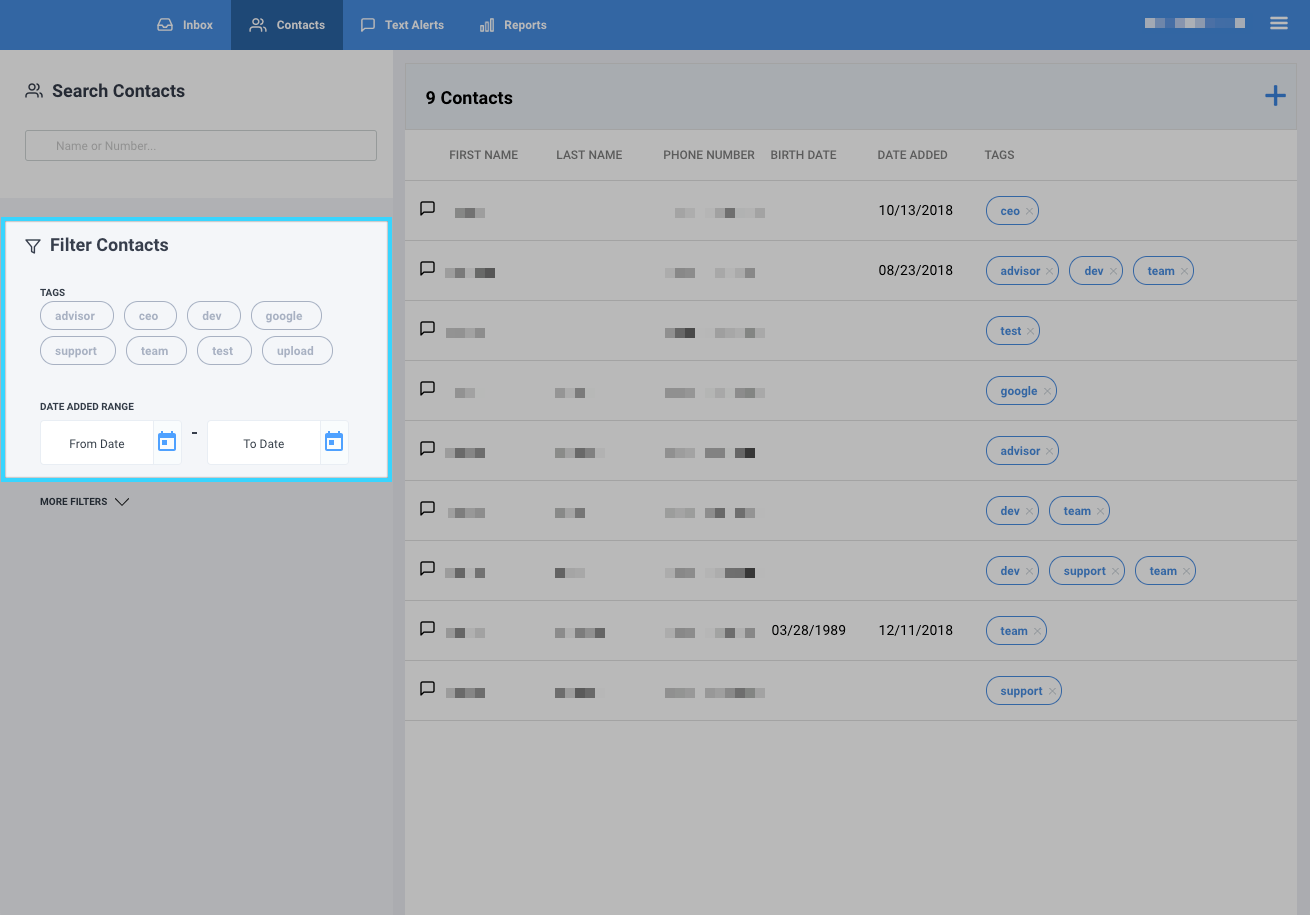
- Click on "More Filters" for additional filters to use:
- Birthdate Range: Find contacts between specific birthdates added to the system
- Select State: Find contacts based on their state added to the system
- Zip Code: Find contacts based on their zip code added to the system
- Select Birth Month: Find contacts based on their birth month added to the system
- Select Gender: Find contacts based on their gender added to the system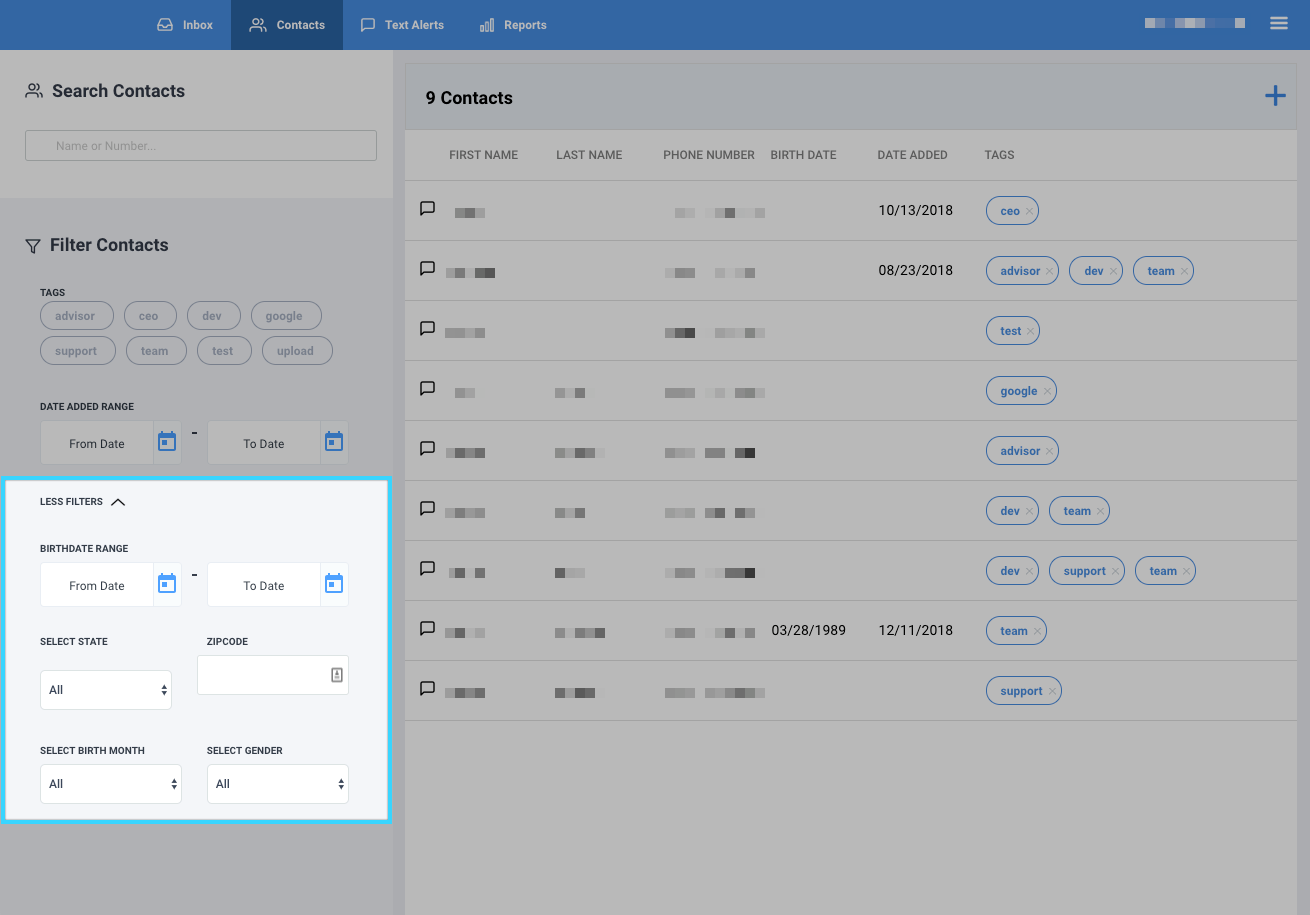
Using filters in the Text Alerts tab
Use filters in the Text Alerts tab to send messages to specific contacts.
- Go to the Text Alerts tab.
- Under "Filter Contacts," you will find different filters to use:
- Tags: Find contacts based on their assigned tag
- Date Added Range: Find contacts based on the date that they were added to the system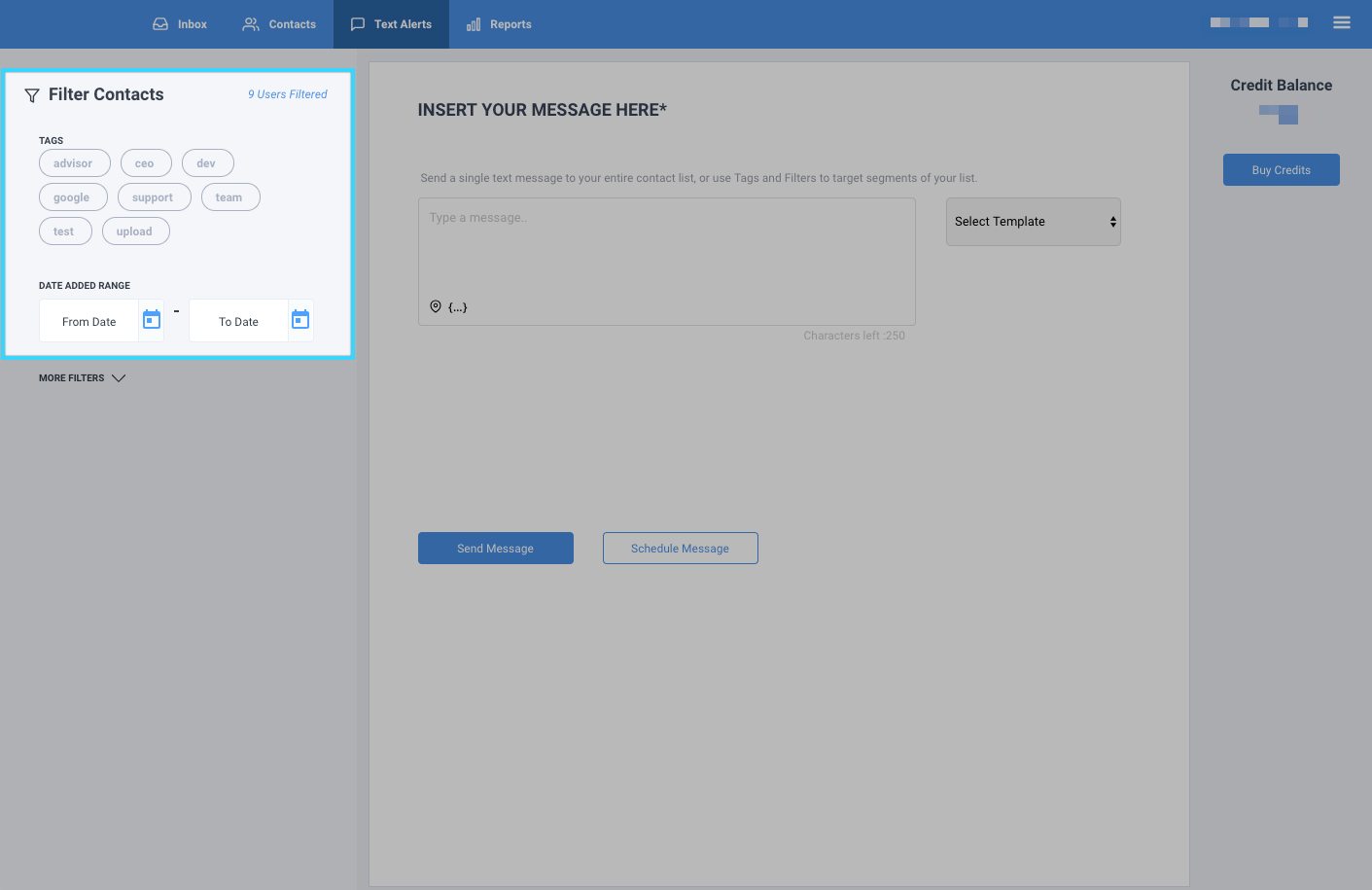
- Click on "More Filters" for additional filters to use:
- Birthdate Range: Find contacts between specific birthdates added to the system
- Select State: Find contacts based on their state added to the system
- Zip Code: Find contacts based on their zip code added to the system
- Select Birth Month: Find contacts based on their birth month added to the system
- Select Gender: Find contacts based on their gender added to the system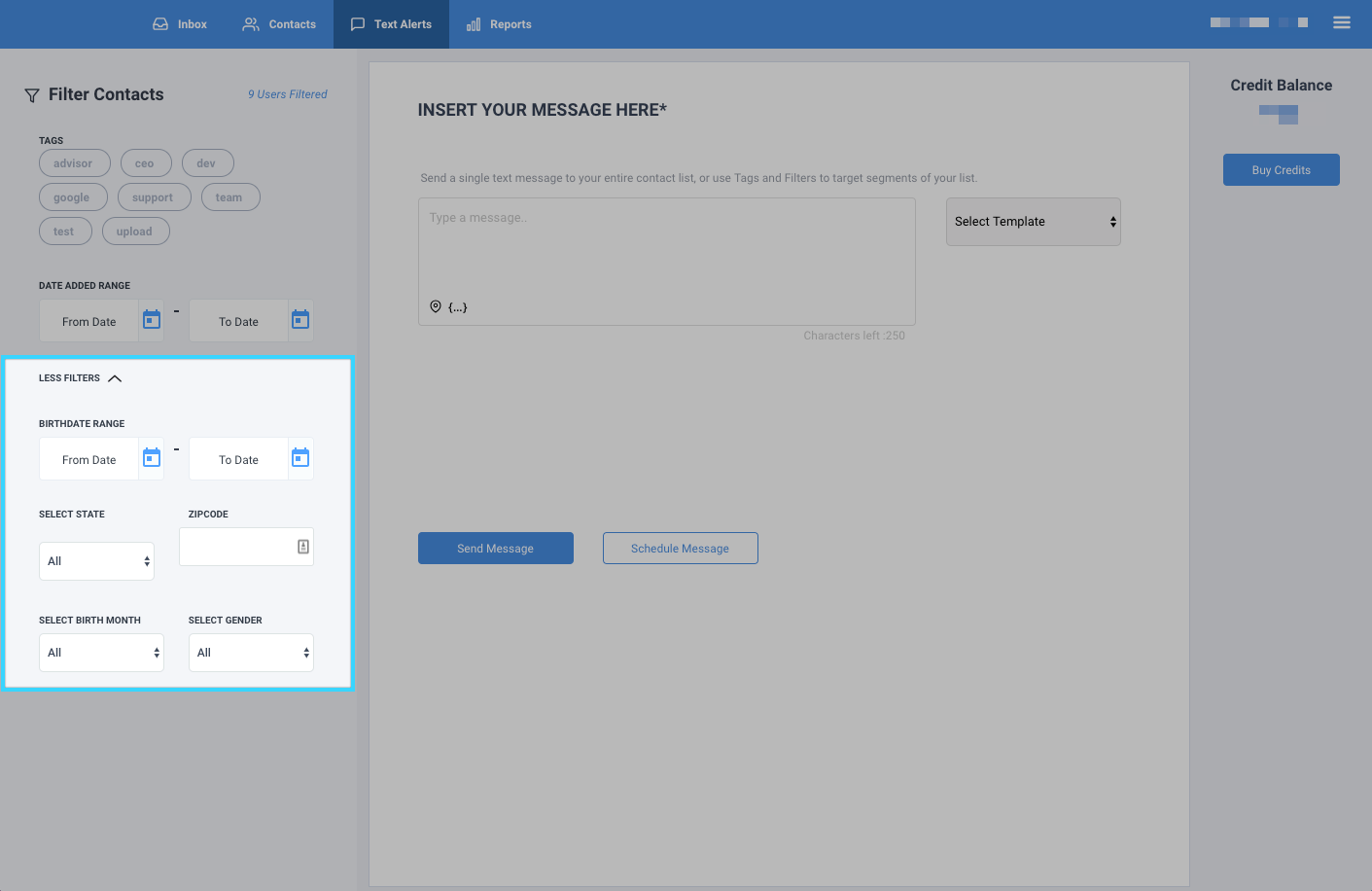
- Depending on the information you've filtered, you will find the numbers of contacts filtered to the right of "Filter Contacts."
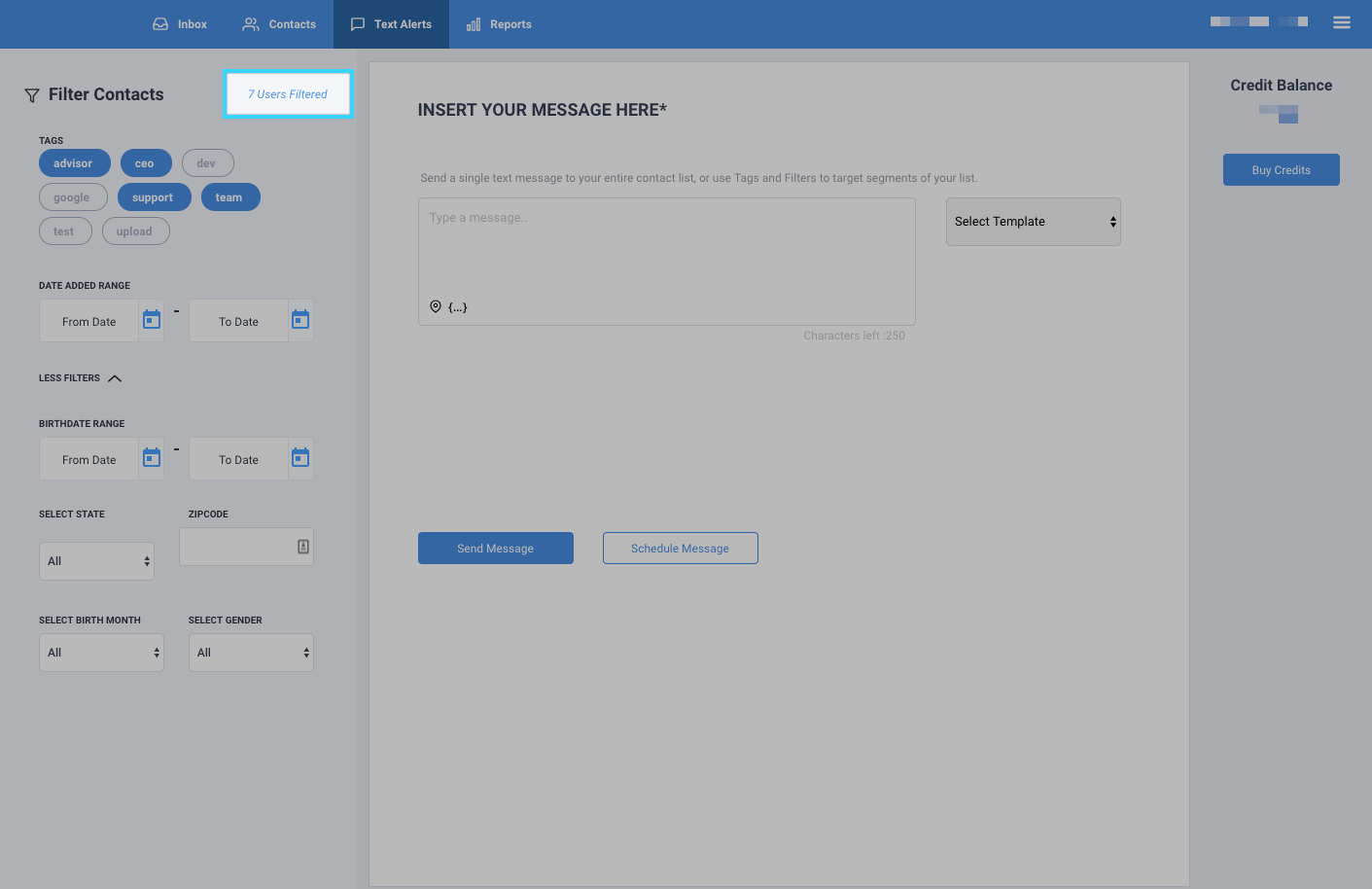
- After you've filtered your contacts and compose your message, only those contacts filtered will receive your text alert.