You can view data of text alerts sent in the "Text Alerts" report.
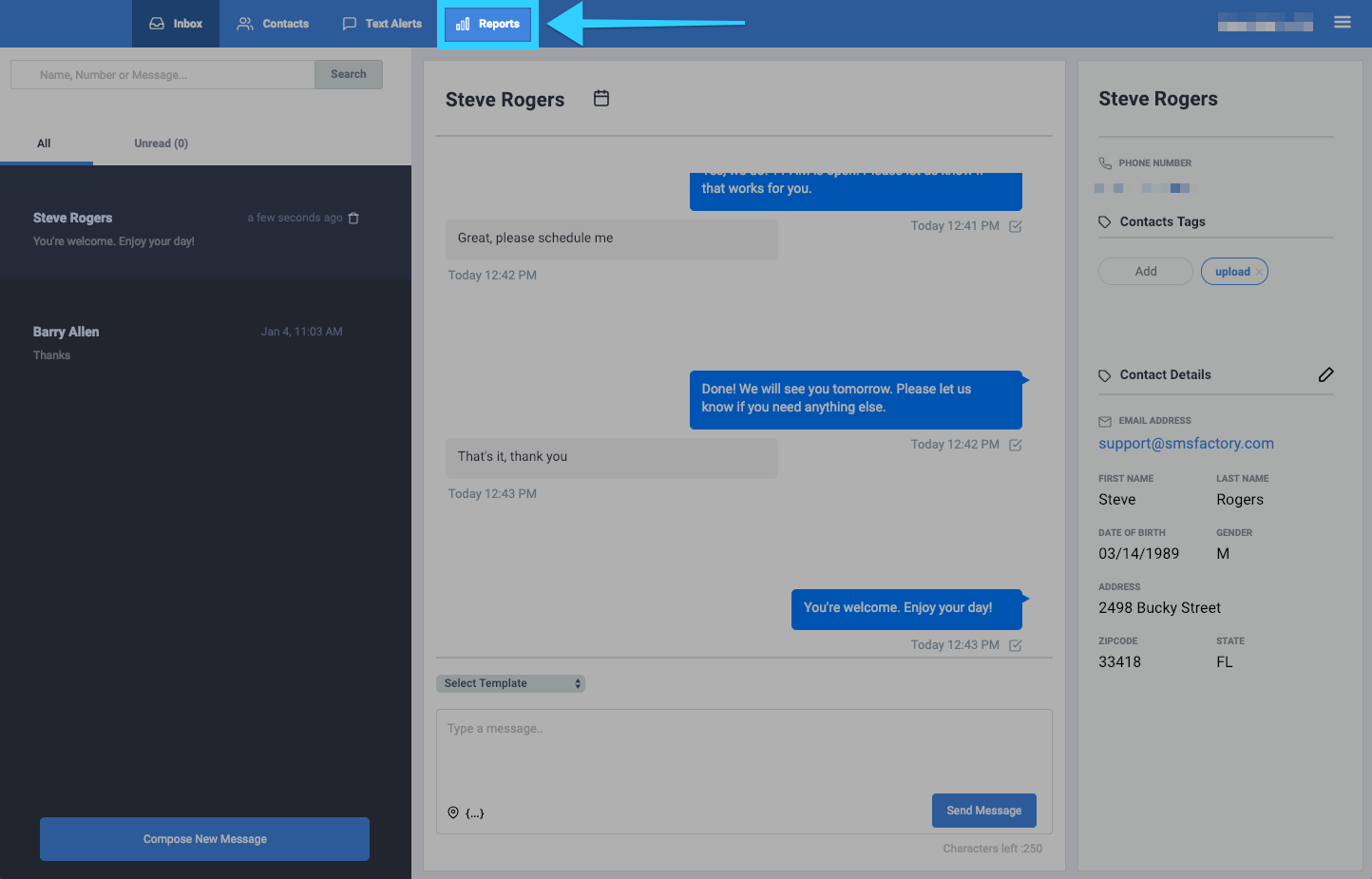
- Click on the Reports tab.
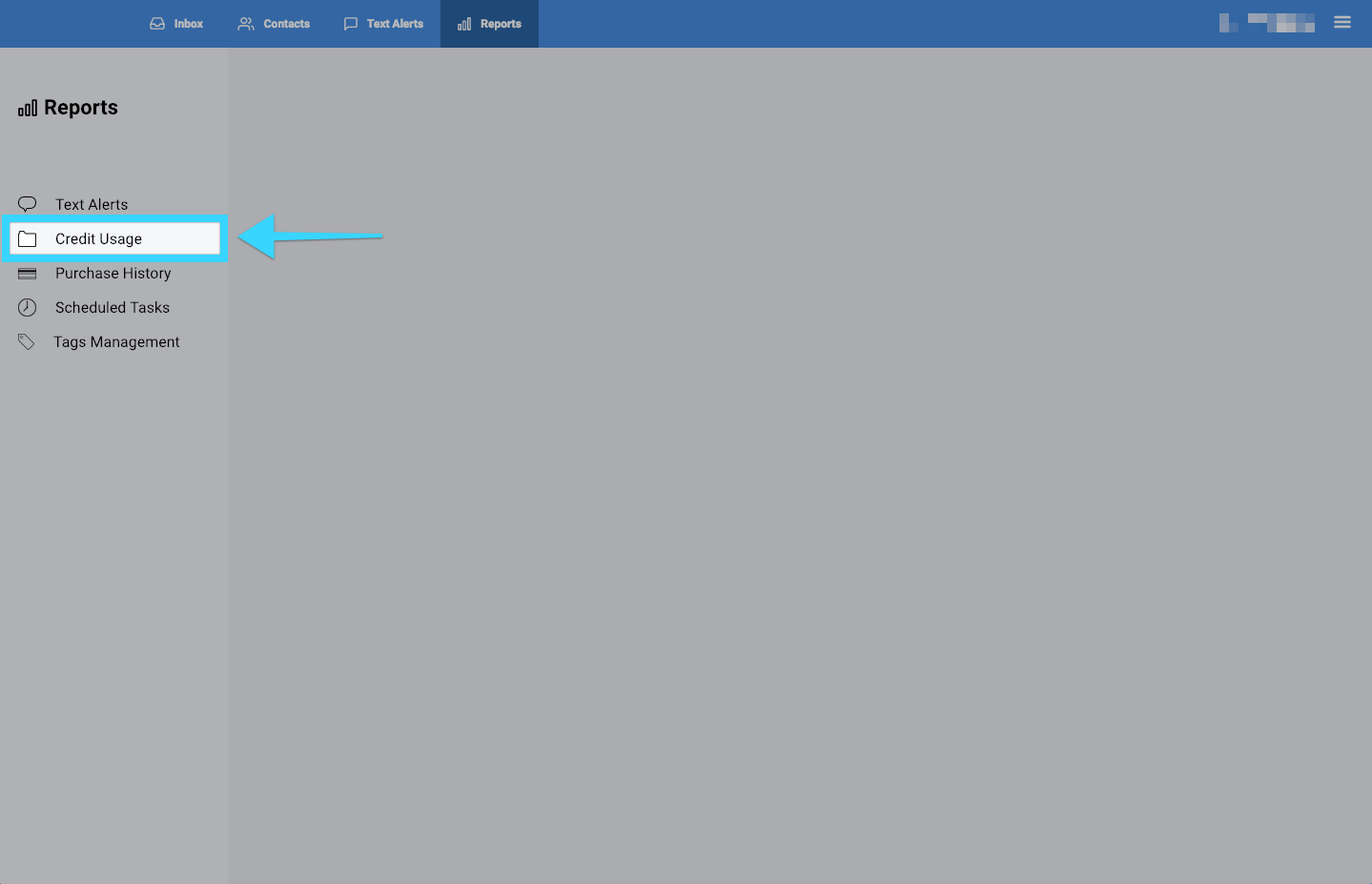
- You will be presented with different report options on the left side of the screen. Click on "Credit Usage."
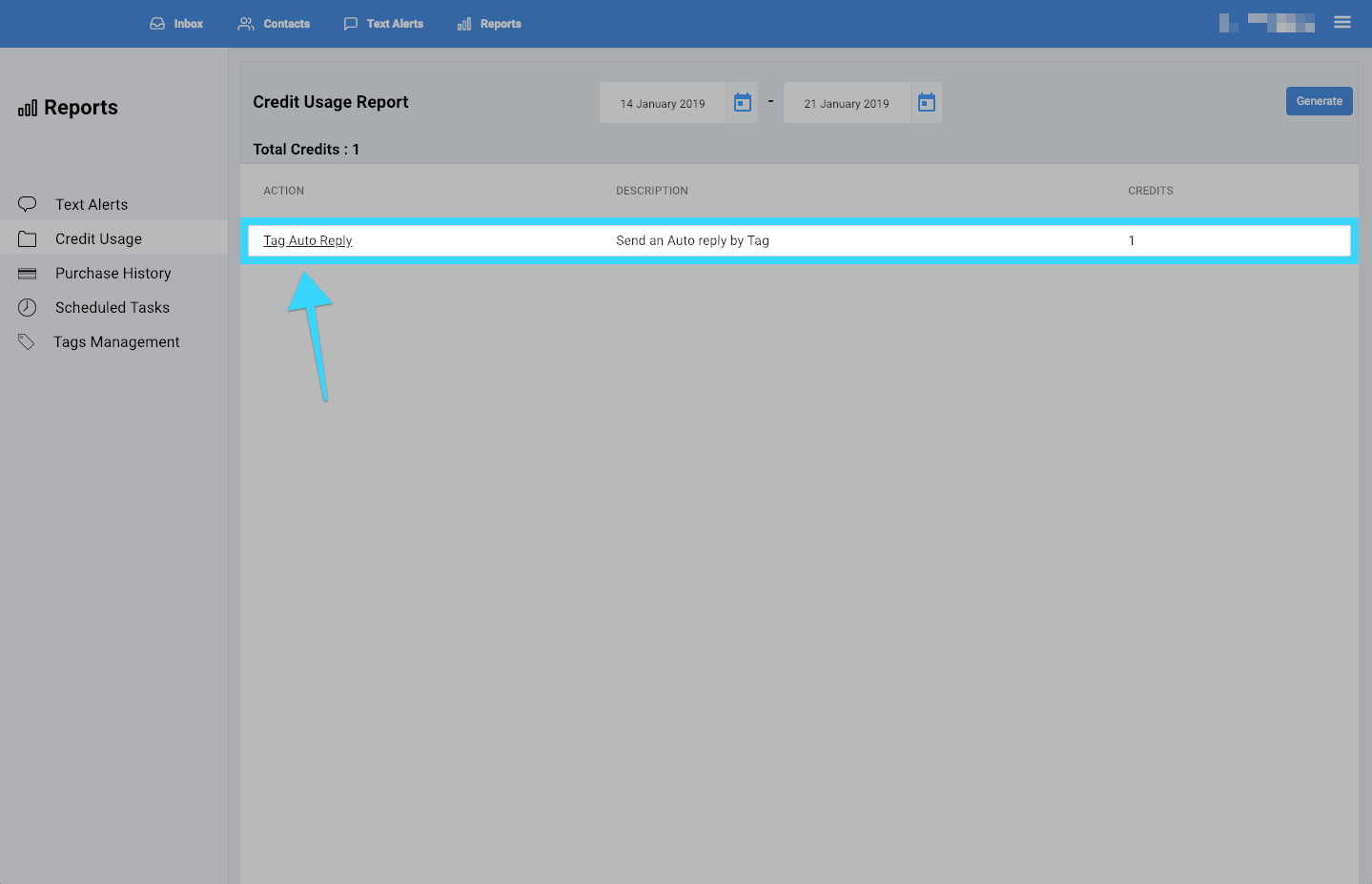
- You will then be presented with a report of all the credit usage.
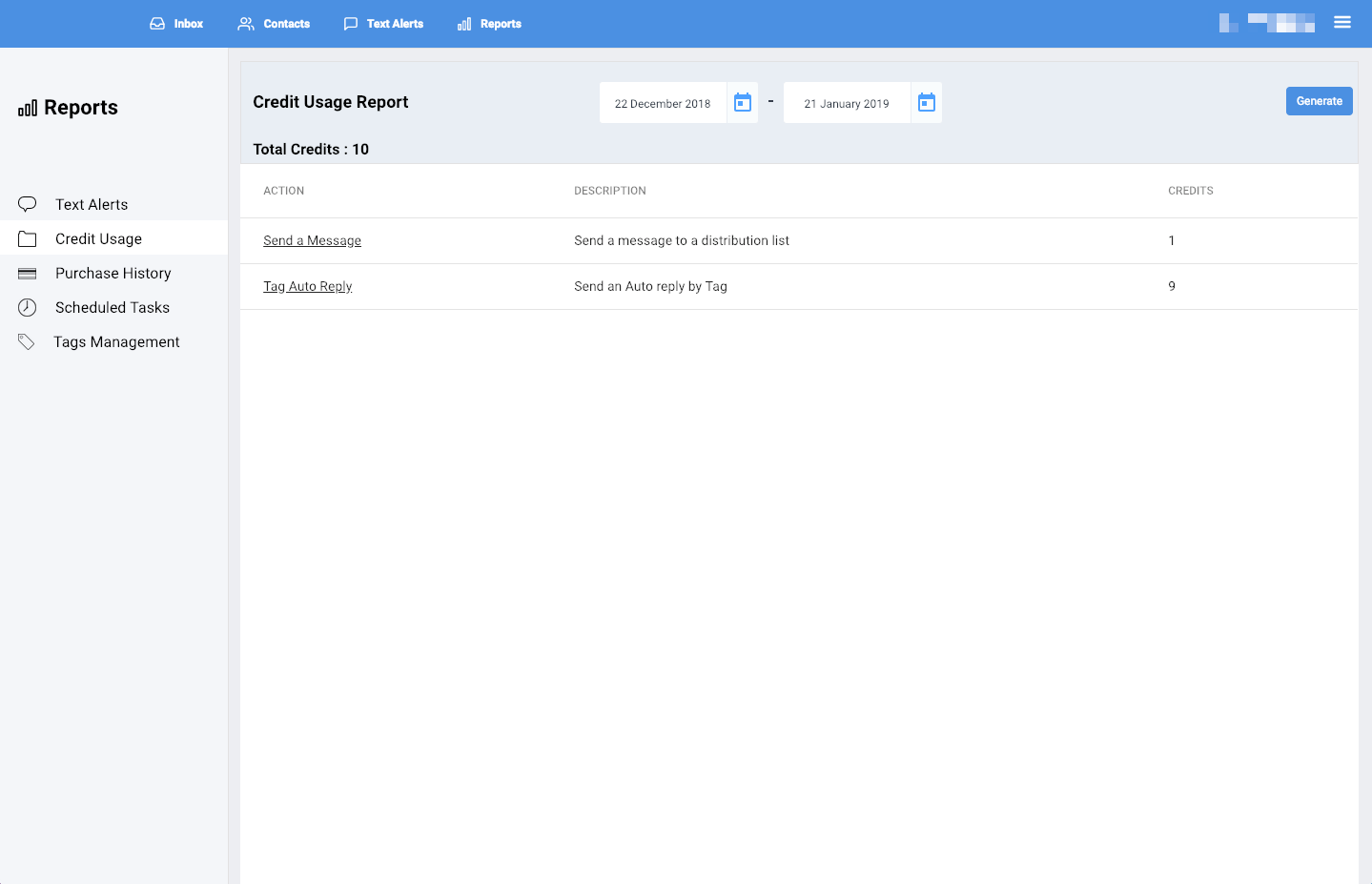
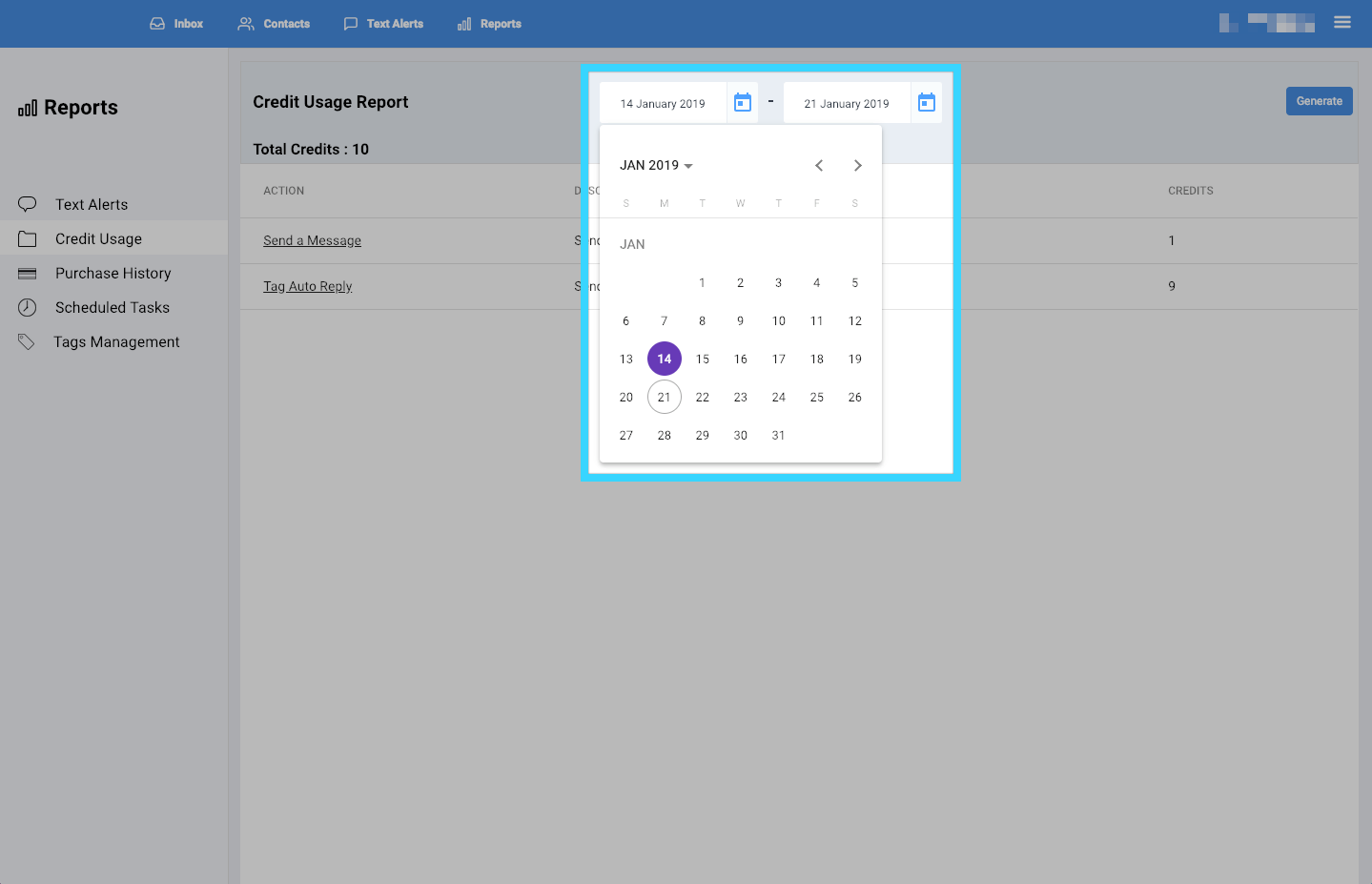
- You can filter the report by selecting a desired time period at the top.
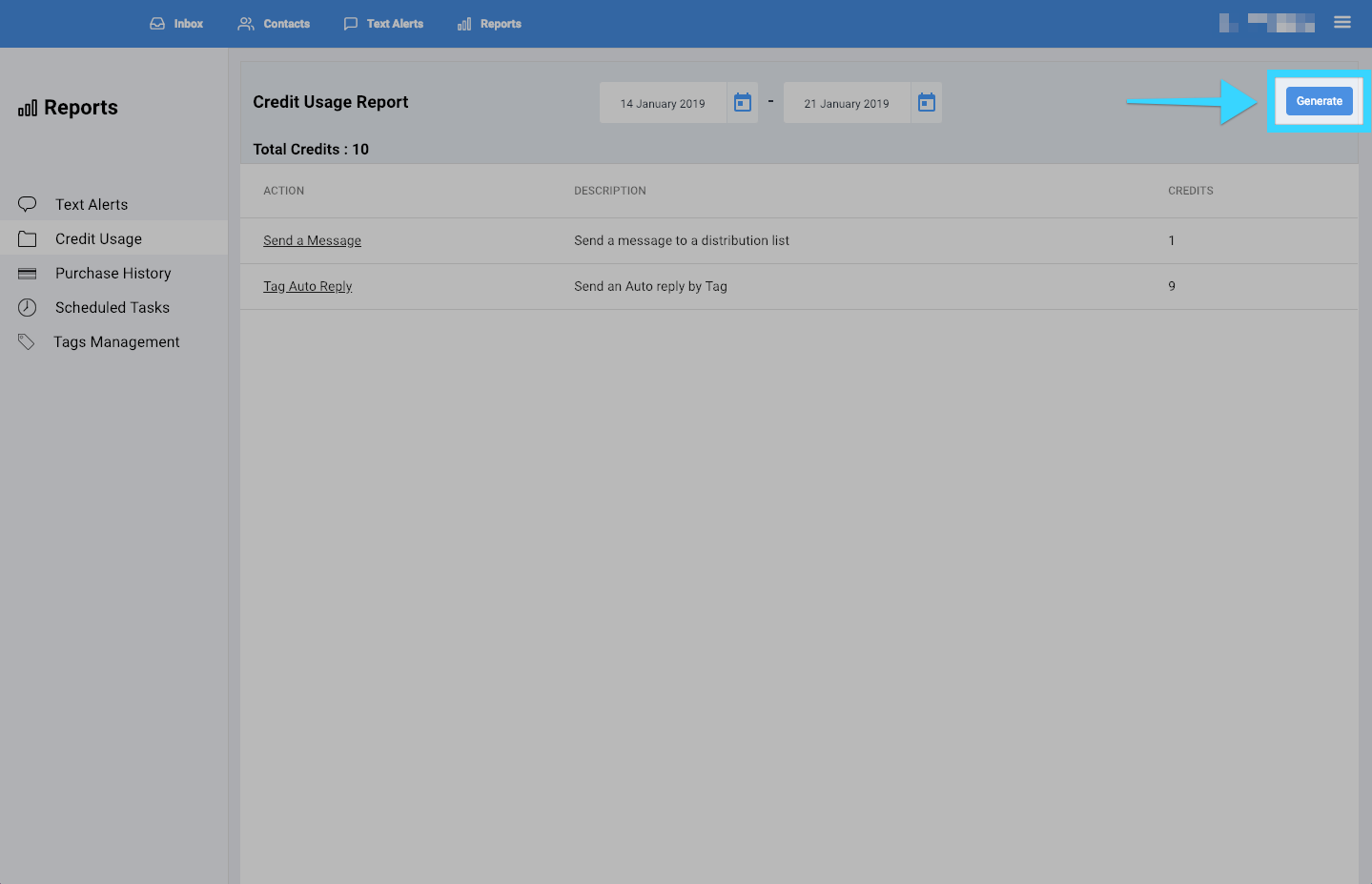
- Once you've selected your desired time period, click "Generate."
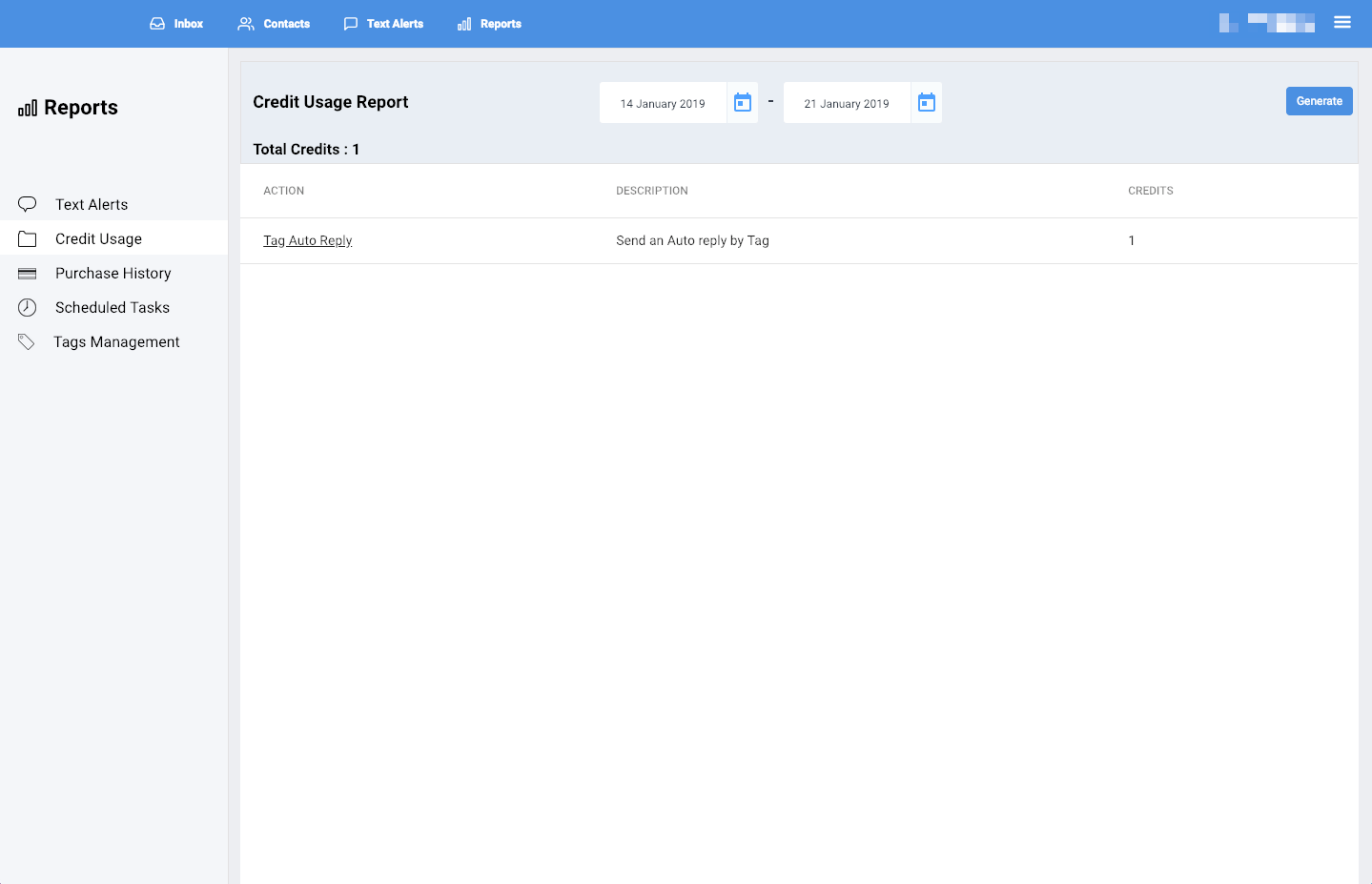
- You will be presented with a report of your desired time period. If there isn't any data for that time period, no data will be shown.
- Each column in the report will provide you with the following information:
- Action: The action that was taken for each credit used, for example, "Send a Message" and "Tag Auto Reply."
- Description: The description of the action taken.
- Credits: The number of credits used for that action.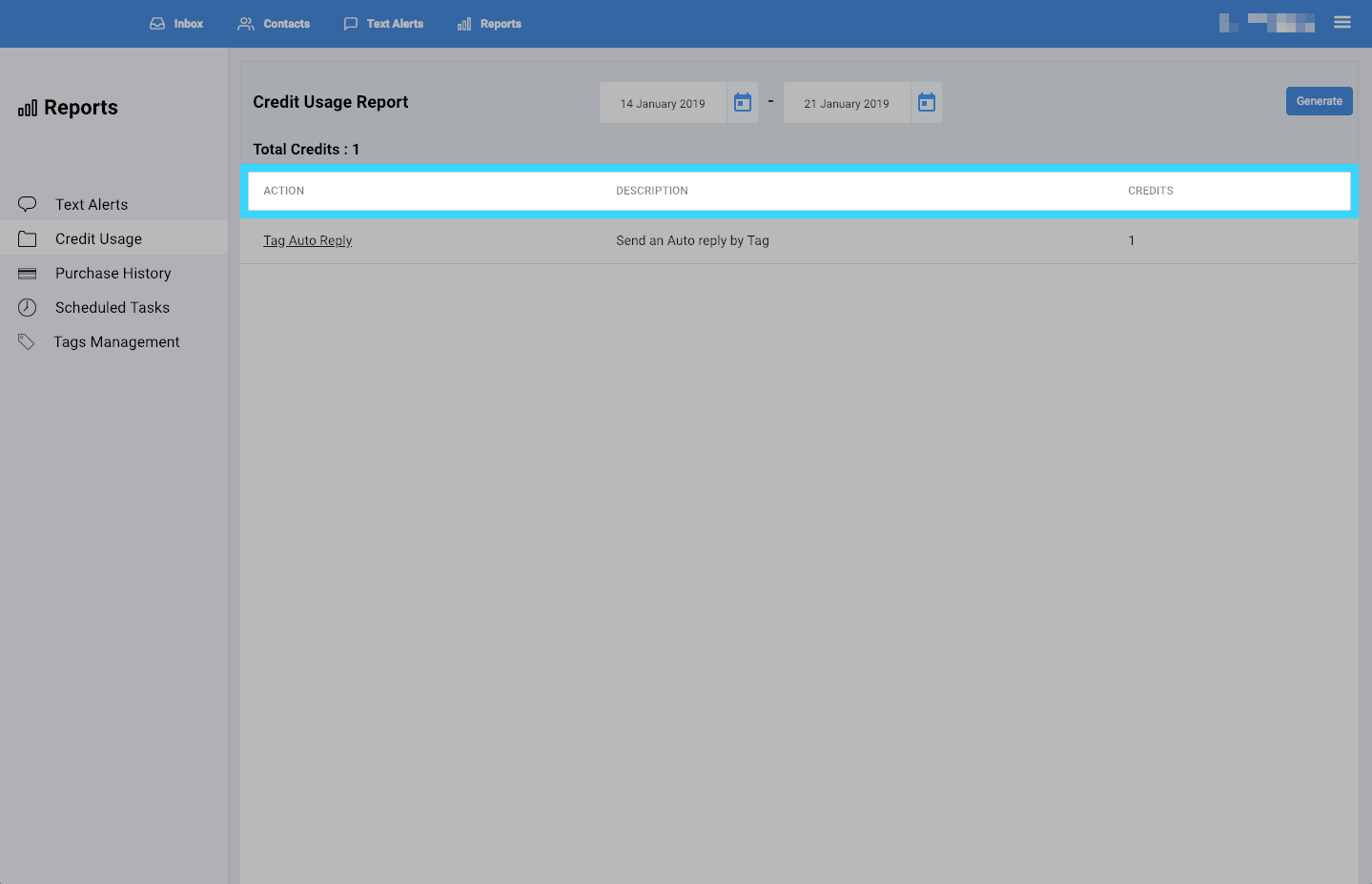
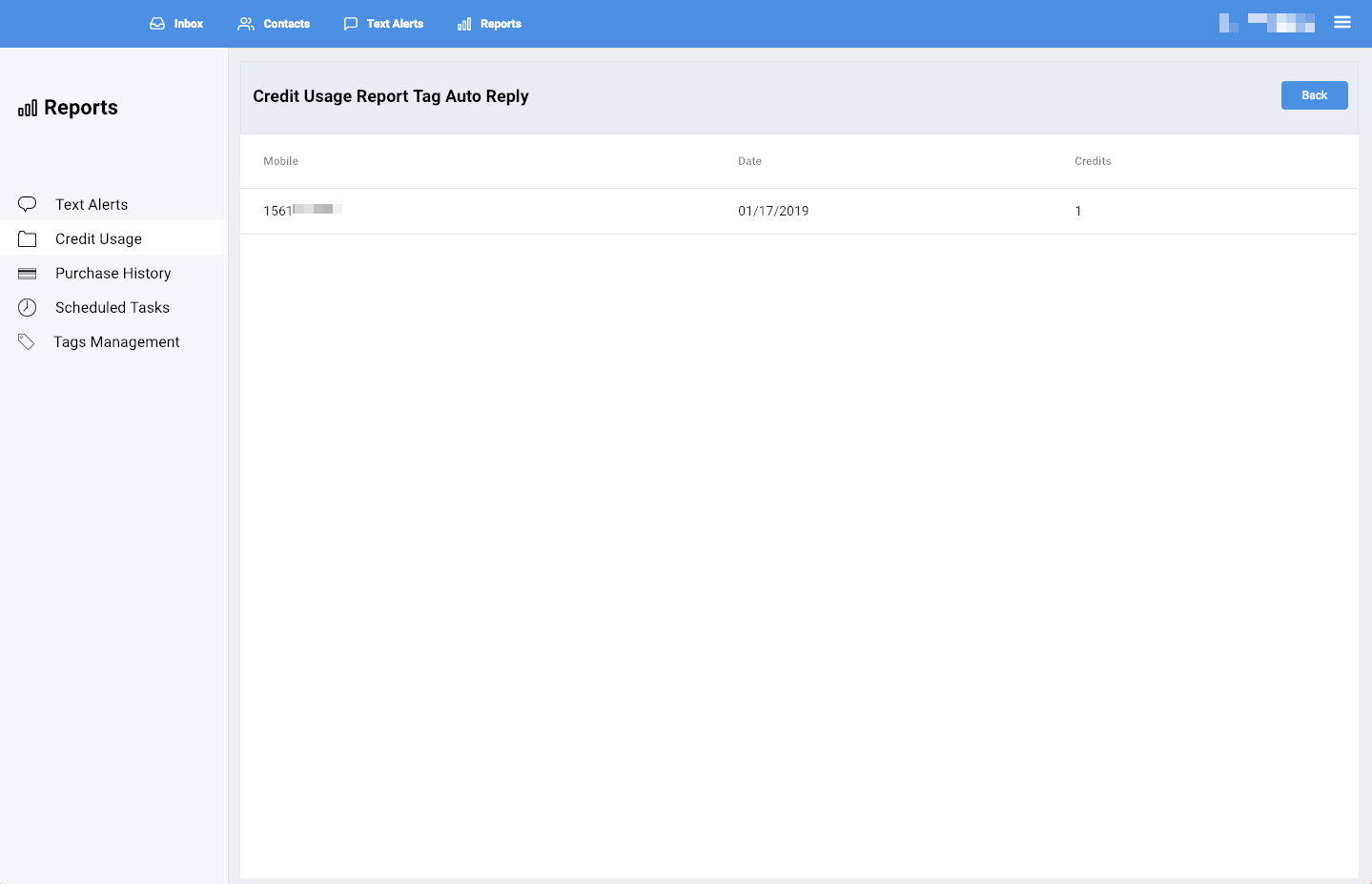
- Clicking on the actions will provide you with detailed information.
- You will see a breakdown of the mobile numbers on which the credits were spent, the dates the credits were spent, and the number of credits spent on each mobile number.